
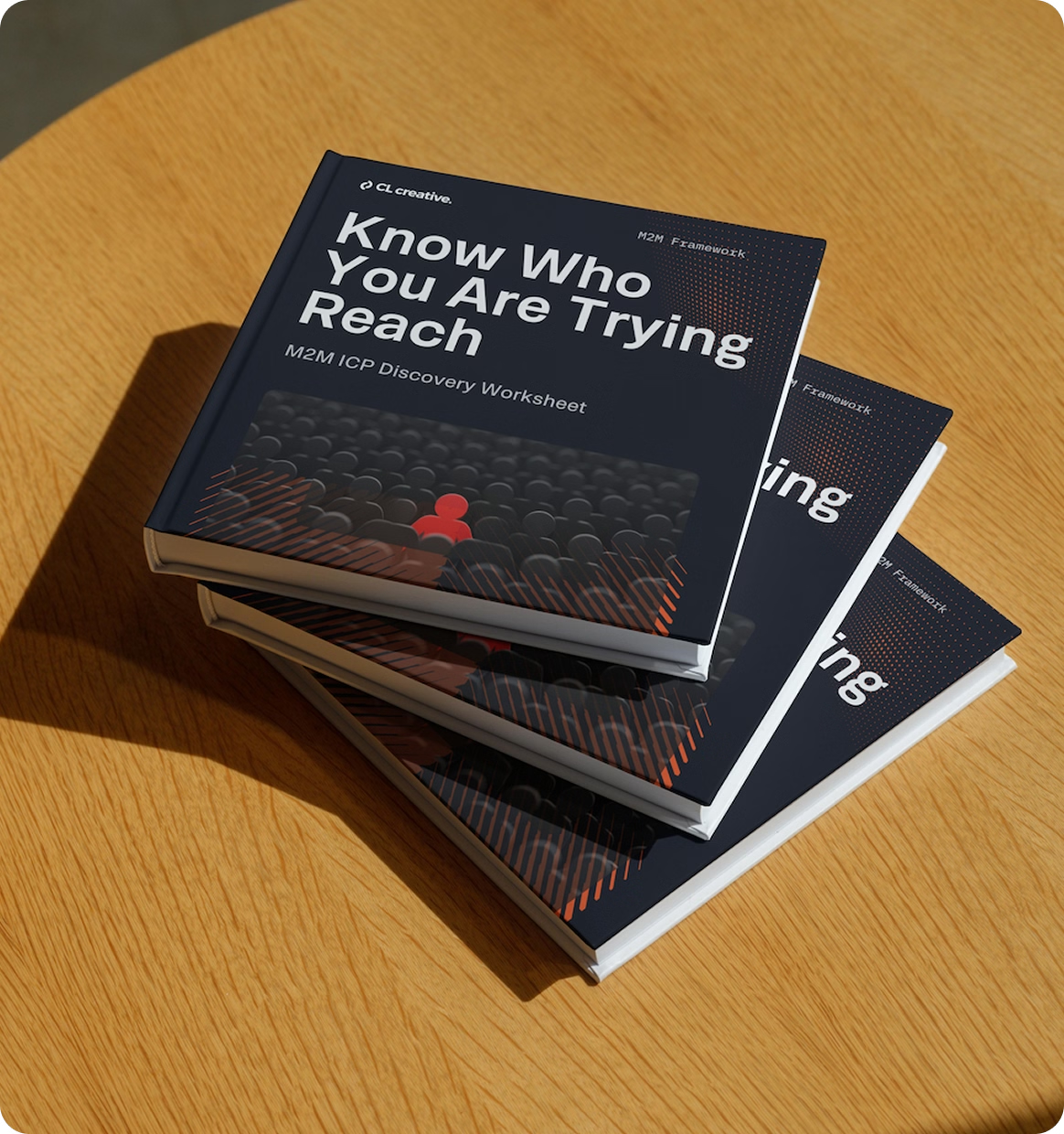
Get the M2M ICP Discovery Worksheet
Know who your website should speak to and what to say.
Creating a dynamic, user-friendly website involves mastering various design elements. Popups can elevate a website’s user experience.
Yet, for many, the idea of creating a popup brings to mind hours of coding and endless complications. What if I told you there's a way around it? What if you could craft the perfect popup in Webflow without diving into the intricacies of code?
For those who have been mystified by Webflow's interactions panel or are simply seeking to streamline their design process, I've got some good news for you!
In our latest video tutorial, we break down the steps to create a seamless popup using Webflow. And the best part? No coding knowledge is required.
In this comprehensive guide, we’ll look at:
- The world of Webflow Interactions
- Structuring your popup modal using HTML
- Applying the essential CSS to bring it to life
- Setting up the trigger interactions for smooth user engagement
- And, of course, sprinkling in some best practices and tips to make your popups truly stand out!
Ready to embark on this journey? Watch the tutorial and enhance your Webflow designing skills.
If our content resonates with you, do give it a thumbs up and consider subscribing for more insightful Webflow content. Have questions or need further insights? Feel free to reach out. We're here to assist and guide you every step of the way.
Happy designing! 🎨🖥️🚀

Your Marketing Isn't Bringing in Leads and You Can't Figure Out Why
Score your marketing across 7 key areas in 5 minutes and find out exactly what's holding back your leads and what to fix first.
Questions You Might Be Asking
Add an interaction that sets the body's overflow to hidden when the popup opens, then toggles it back to auto on close. In Webflow, you can do this via a second step in the same interaction — select Body as the target and change the overflow style. It's a small touch that makes the popup feel like a proper modal.
Opacity + visibility is smoother because you can animate the transition in and out. display: none removes it from the layout entirely, which is fine but kills any transition. The typical pattern is to set opacity 0 and visibility hidden in the base state, then toggle to opacity 1 and visibility visible on open.
That requires a small custom code snippet — Webflow interactions don't listen for keyboard events natively. Add a document-level event listener that checks for the Escape key, then triggers the close interaction via a click on the close element. It's 10 lines of JavaScript and a big accessibility win.
Not with pure Webflow interactions — that needs a cookie or localStorage check. Add a short script that looks for a 'popup-seen' flag in storage; if it's missing, trigger the popup and set the flag on close. Gives returning visitors a cleaner experience without hammering them with the same prompt every page load.


